
Categories
Categories are a flexible menu item that can contain any grouped content types you wish (eg. videos AND audios AND resources). This can be especially useful if you have a situation where you want users to review content of specific type but don't want to direct them to multiple listings of large groups of content (eg. sending them to video to watch episode 3 in an 18 part series, and then also to a resource elsewhere)
Categories can also be setup to be a custom menu item visible directly through your app menu as a Gold Styled menu option, so that users can quickly access a category of content without needing to navigate into sub-directories or topics.
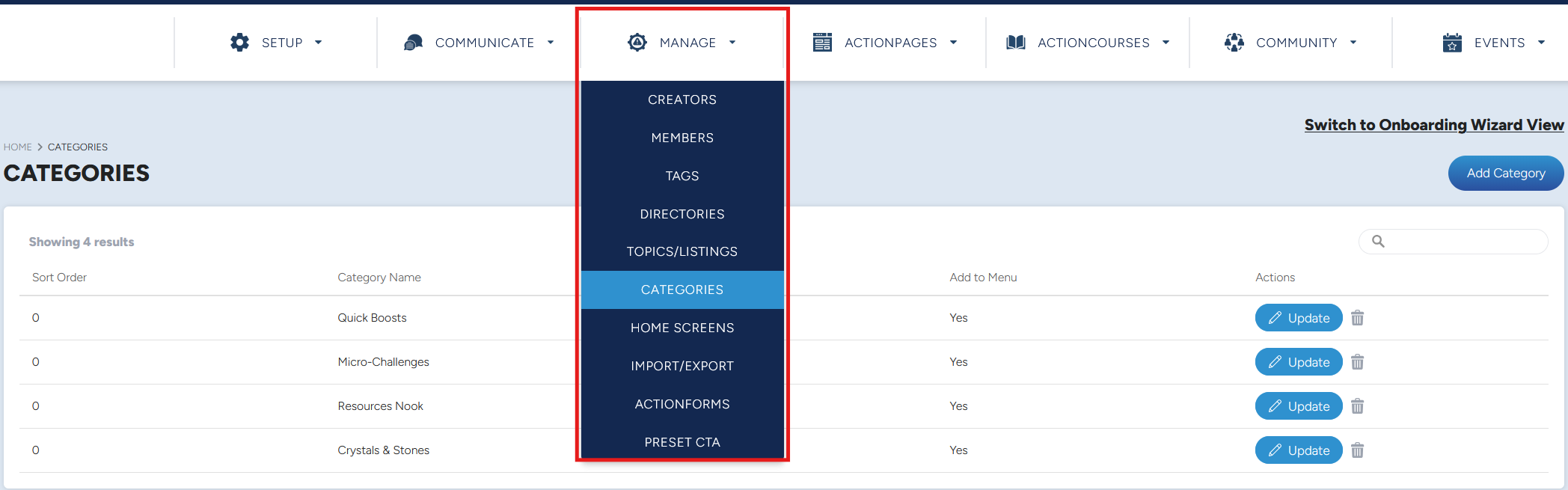
You can access Categories under MANAGE in the Creator Portal:
Category Options and Fields
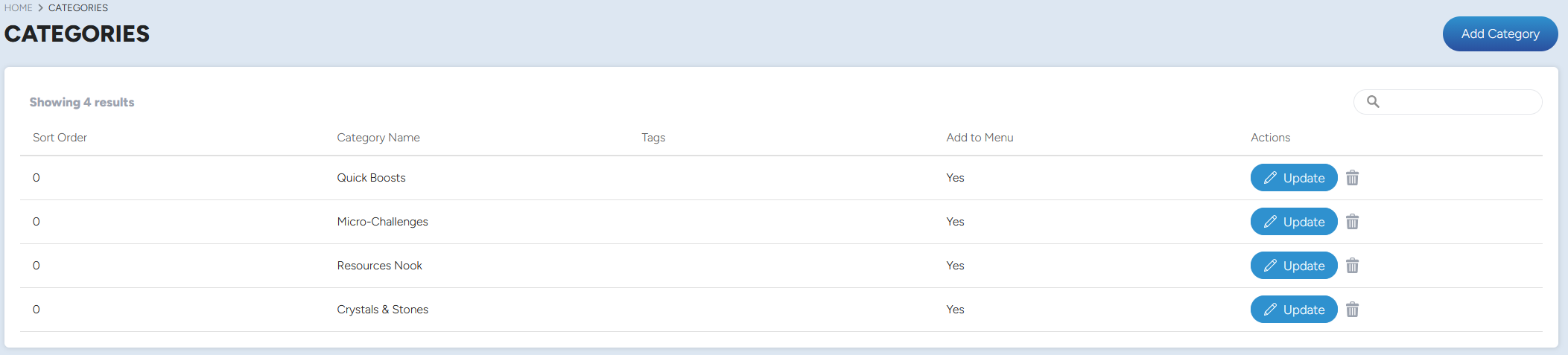
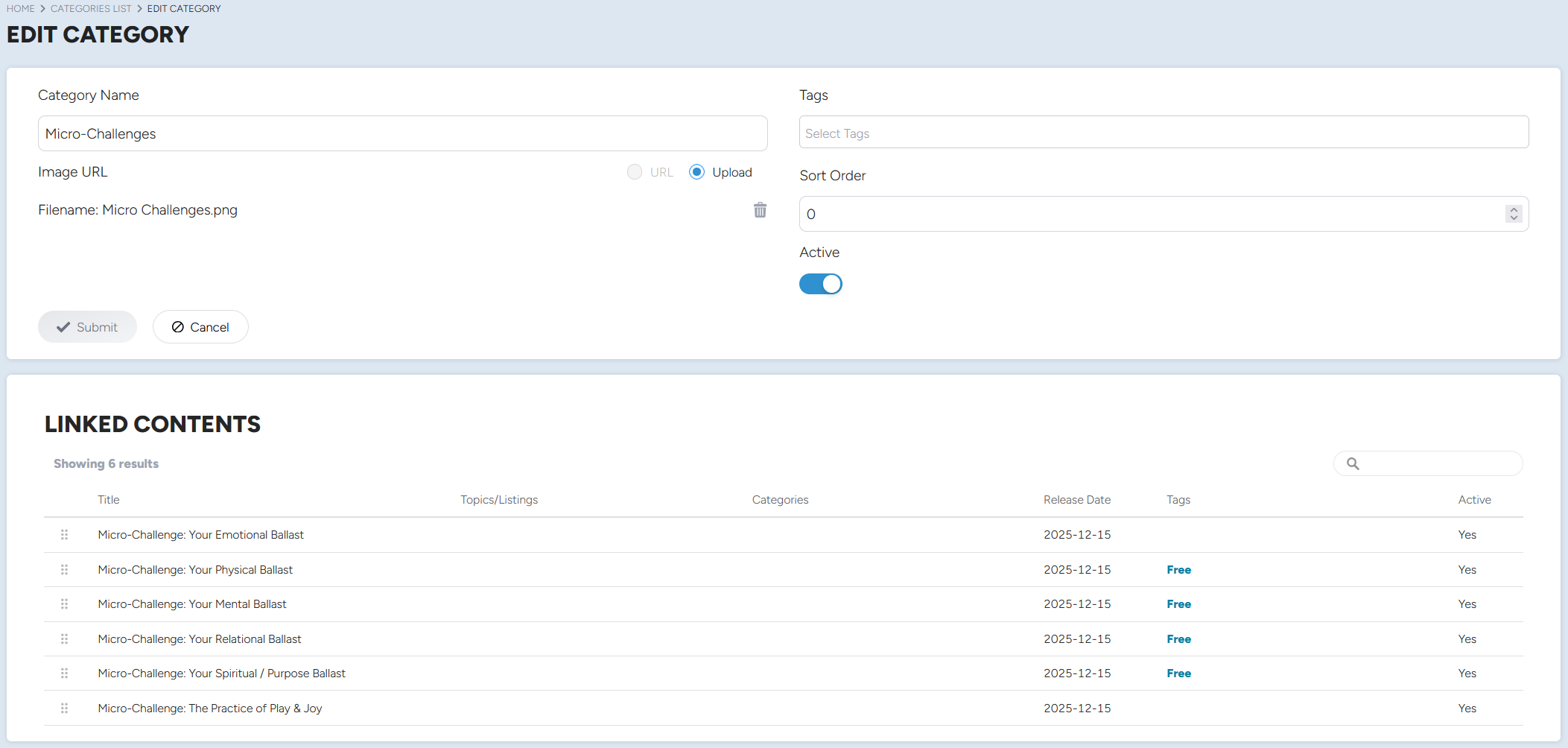
- Category Name - This is the name as it will appear to clients and users
- Image URL - This image will be your thumbnail image to represent the category
- Tags - Control visibility to users through the use of tags
- Sort Order - Sort order will control how a category will appear in relation to other categories in order
- Active Toggle - Make the content visible or not to users
Content is selected to be displayed under a category on the content itself, if you want a piece of content to be visible under a category, navigate to that content and add your newly created category to the new category field on that piece of content.
Sorting how content is displayed in a category is different than in other places
In order for your content to be displayed in the order you want for the end-user, you will need to order the content directly through the use of the "Linked Contents" table, new content is always added to the bottom of the list, but can be organized into any section the list by dragging and dropping into the desired area using the " " that can be found to the left of the content titles in the linked contents table.