
How to setup Topics and Listings
Topics and Listings are used to organize content for your users to access based on visibility, with topics being highly visible and directory listings being tucked behind one extra screen.
You can setup your topics and listings under TOPICS/LISTINGS in the Creator Portal:

Lets take a quick second to go over the structure of the app, to give you a good working knowledge that will allow you to use the app in the best way possible to serve the needs of your goals within the app.
There are two main structure networks in the app and multiple ways to access each one.
1. Topics
Topics are the most visible and easily accessible structure in the app. By default, most app owners will have a TOPICS button on the main home screen area.

This is the main way that most app users will quickly find and access the topics in your app. The second way is through the dropdown menu ☰
2. Directory Listings
Directory Listings work exactly the same way that Topics do. You will use the exact same form to create a Topic as you will a Directory Listing. The ONLY difference between topics and directories, is where users find them in the app/web.
Topics Live in the Topics menu found by using the 2 possible methods mentioned above. Directory Listings are found under Directories. The only way to get to Directories, is by using the dropdown menu ☰
To find a detailed training on how to setup directories, check out the directory article
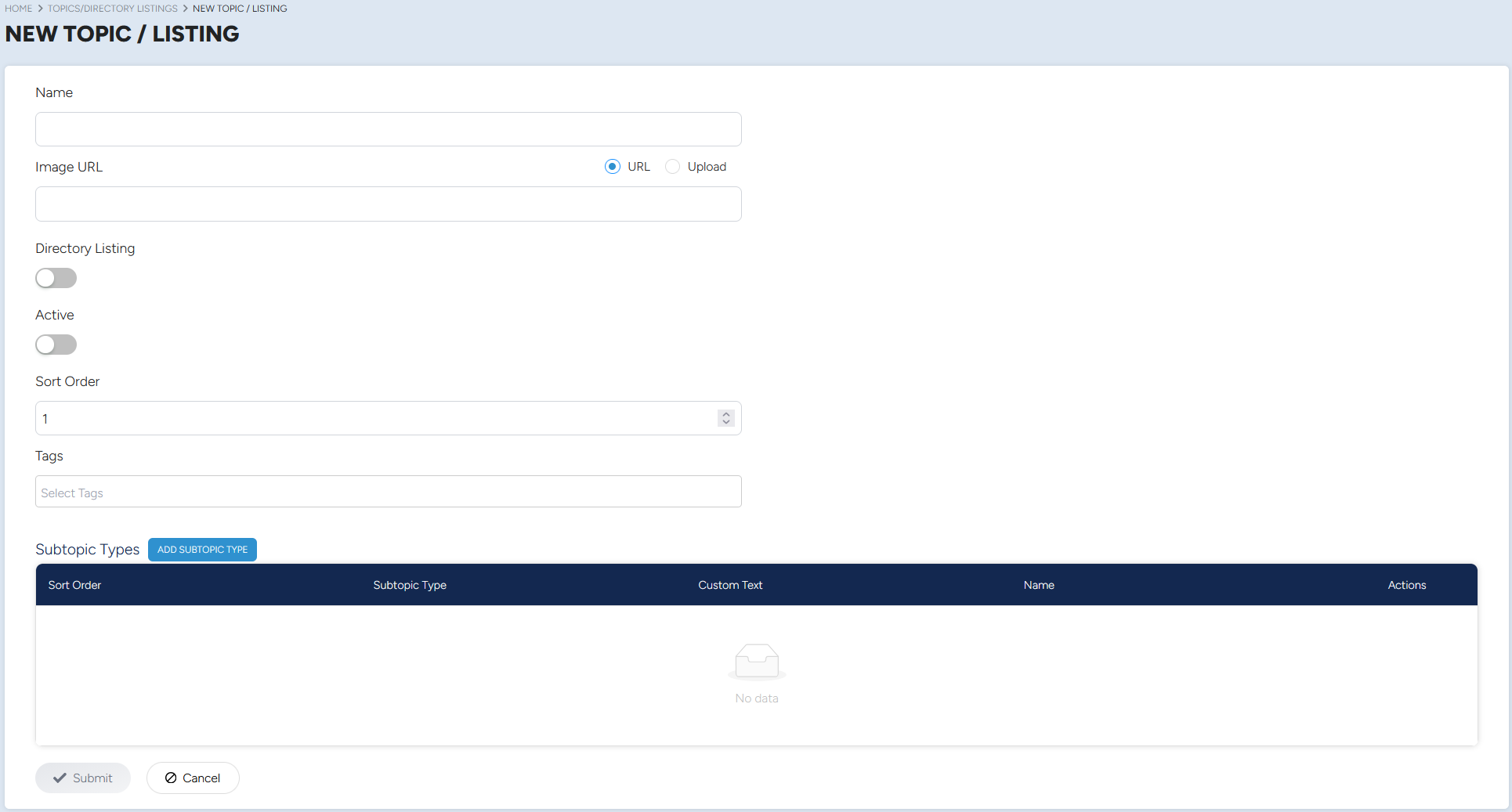
The topics/listings menu is broken up into two parts, the first is a basic administrative part consisting of
- Name - Enter the name of your Topic/Listing here.
- Image URL - Insert the image URL or Upload the image directly.
- Directory Listing Toggle - By switching this toggle on you are turning your Topic into a Directory Listing. This means you will need to select which Directory you want your Listing to appear under. A directory selection field will appear below this button to choose your Directory.
- Sort Order - Sort order establishes what order the content is displayed in to users
- Tags - Tags are used to decide who can and cannot see the content
The second part is where you will select your content you wish to include, to start, click the "Add Subtopic Type" to open a drawer menu:
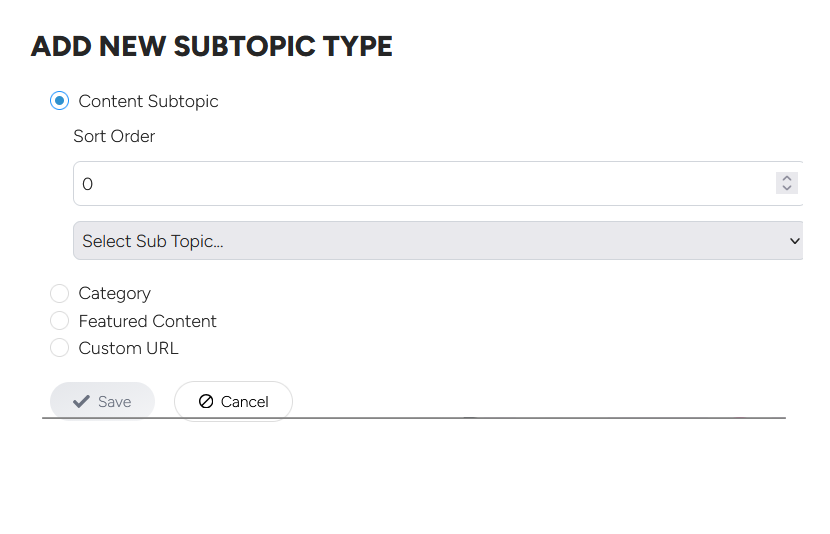
- Content Subtopic - Subtopics establish what groups of media will appear under your topic/listing, Learn More Here
- Category - Categories can be added to give quick links to a directory of grouped content of multiple media types, Learn More Here
- Featured Content - Featured content is top level, direct access menu buttons to specific content such as Videos, Articles, Podcasts or Audios, Resources, and more.
- Custom URLS - You can add additional URL links with text prompts under any Topic/Listings. You can add multiple links if you like. Click the ADD CUSTOM URL button and fill out the Link Text and Link Fields.